

Add Feedback Loop
- Open Customize → Connectors in Claude.
- Select + Add → Add custom connector and name it Feedback Loop. If your organization already added it, select that connector and Connect instead.
- Enter this remote MCP server URL, then select Continue:
- Review the detected authentication settings and continue. Choose Sign in now under Authentication and Register automatically under OAuth client.
- Select Add to create the connector and open its details. Select Connect to start authorization.
- Sign in with your Feedback Loop owner account. Choose projects and Read or Manage access for each, then approve.
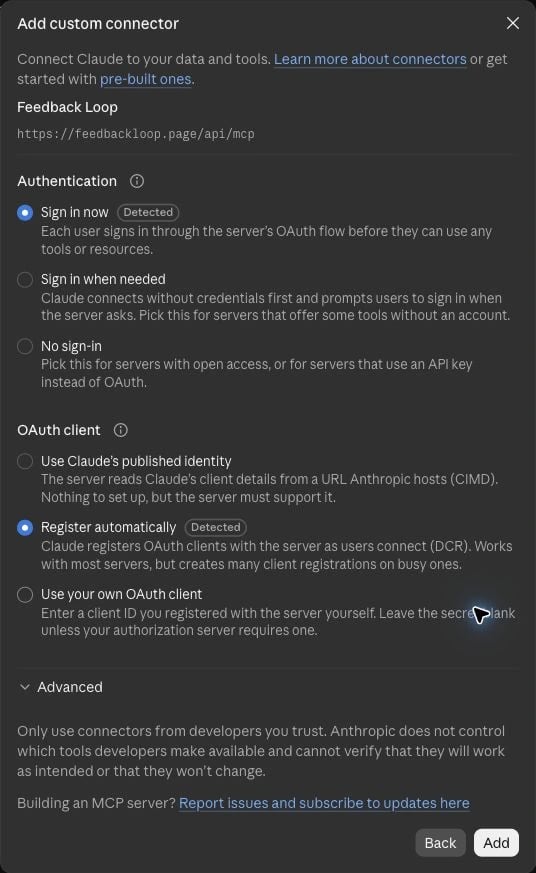
Choose Sign in now and Register automatically in Claude's custom connector setup.
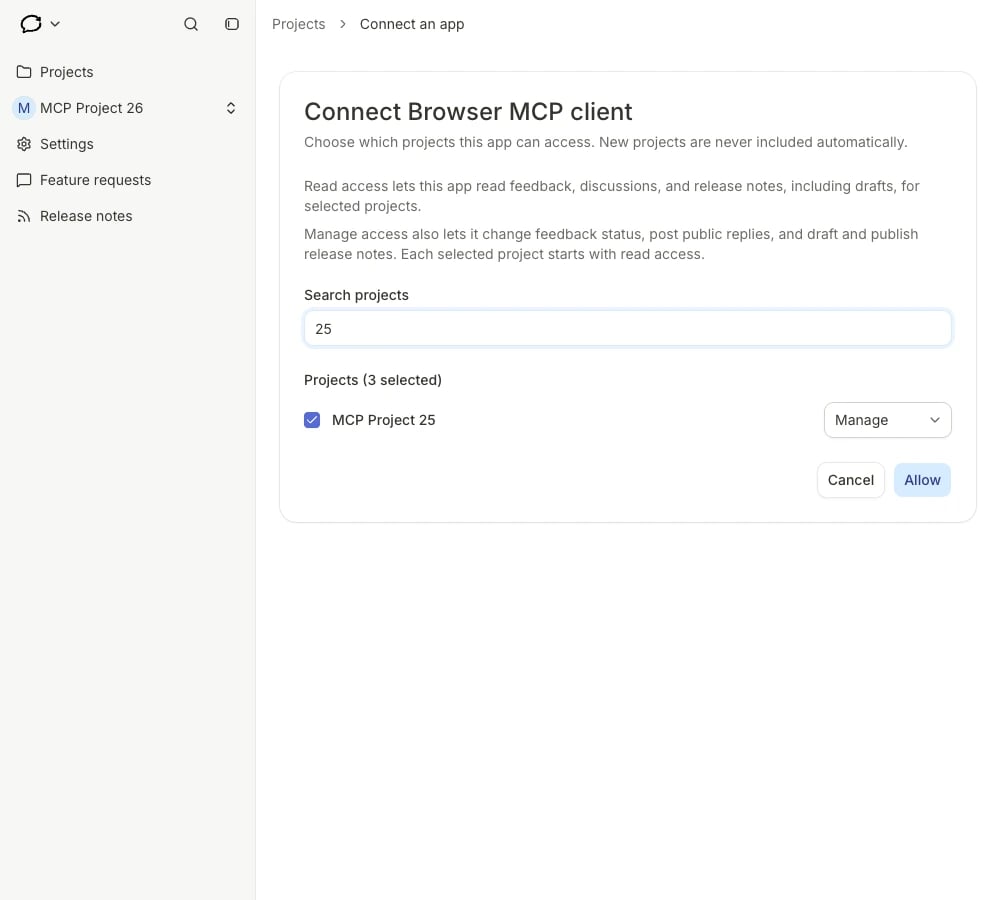
Choose projects and access levels in Feedback Loop. This example connection uses a browser MCP client.
Use it in a conversation
Start a new conversation. Open the + menu beside the prompt, choose Connectors, and check that Feedback Loop is enabled. Send a connection check:
Call list_projects once and report the available project names and access levels. Do not open further pages, feedback, discussions or release drafts, and do not change anything.
If Claude requests permission for List projects, select Allow once.
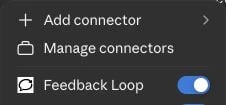
Enable Feedback Loop in Claude's conversation connectors menu.